What is Structured Data and How to Add it in Nuxt.JS


Here you will see what Structured Data is, when to use it, when not to, and how to mark up your blog articles in Nuxt.JS with nuxt-schema-org. After that come validating the markup and what to do so Google discovers and indexes your content and, when possible, recommends it in Discover.
What is Structured Data?
Structured data is information from a website that is organized in a standardized format such as JSON-LD, Microdata, or RDFa. Google recommends JSON-LD, which is kept separate from the visible HTML and is the easiest to maintain, and it is the format we use here.
Through structured data, search engines like Google receive more information about what your page is about. Based on this information, along with other factors, search engines can display Rich Results of your site's pages in search results.
What are Rich Snippets?
Rich Snippets or Rich Results are visual enhancements in search results such as images, prices, breadcrumbs, review stars, etc.
Below, you can see an example of a Rich Result on Google from the Yahoo Finance website, where an image, title, and publication date are displayed. These visual elements increase the chances of attracting the user's attention and driving them to your site.

Example of Structured Data Code
Below you can see an example of structured data in JSON-LD. Don't worry, you won't need to write this manually, we'll use a Nuxt tool to generate the code.
This example uses
FAQPage, which was the most common rich result type for years. Google stopped showing the FAQ rich result on May 7, 2026, for every kind of site, and removed the feature's documentation in June. The markup is still valid in schema.org, but today it only describes the content and does not change how your result looks in search.
<script type="application/ld+json">
  {
    "@type": "FAQPage",
    "@context": "https://schema.org",
    "@graph": [
      {
        "@id": "https://codigoaoponto.com/tools/cpf-generator/#/schema/question/c6e1aab",
        "@type": "Question",
        "inLanguage": "pt-BR",
        "name": "What is a CPF Generator?",
        "acceptedAnswer": {
          "@type": "Answer",
          "text": "A CPF Generator is a tool that generates valid CPF numbers, useful for testing and system development. It applies the official CPF validation algorithm to ensure that the generated numbers are correctly formatted."
        }
      }
    ]
  }
</script>
When to Use Structured Data?
Use Structured Data when:
- The page content fits into one of the supported categories, such as articles, products, recipes, events, job postings, etc.
- You want to increase your page visibility and click-through rate (CTR).
- You want to help search engines better understand your website's content.
In any case, what you mark up has to be visible to the user on the page, and the properties have to be kept up to date.
When Not to Use Structured Data?
Avoid using Structured Data when:
- The page content does not fit into the supported categories.
- The content is of low quality; structured data won't improve it.
- The content changes frequently, making it costly to update this information regularly.
- The marked-up content does not appear on the page. Google treats that as misuse of structured data and can apply a manual action to your site.
Installing the Schema.org Package in Nuxt
Nuxt SEO is a collection of SEO modules that make it easier to develop technical SEO for your website. In this tutorial, we will use the module that simplifies the implementation of structured data.
You can install this module in several ways; here, I'll show the two main ones:
- nuxi (Nuxt's official command-line interface)
- npm (Package manager)
If you are using nuxi, simply run the following command:
npx nuxi module add schema-org
If you are using npm, you'll need an extra step. Start by installing the package:
npm i nuxt-schema-org
Then add the installed package to the modules option in the nuxt.config.ts file:
export default defineNuxtConfig({
  // other configurations...
  modules: [
    // other modules
    "nuxt-schema-org"
  ]
  // other configurations...
});
Once this is done, we can start using the tool.
Structured Data for Articles in Nuxt.JS
For a blog, the most useful type is Article. It tells Google that the page is an article, who wrote it, when it was published and updated, and which image represents it. Google does not require any property for Article, but it recommends these:
headline: the article title.image: a representative image. Google recommends several high-resolution images in 16x9, 4x3 and 1x1 aspect ratios.datePublishedanddateModified: the date of first publication and of the last modification, in ISO 8601 format.author: preferably aPersonwithnameandurl, pointing to a page that identifies the author.publisher: the organization behind the site, with a name and logo.
In Nuxt, the useSchemaOrg composable is globally available, and you can use it inside the script tag of the page. In a blog page that loads the post with Nuxt Content, it looks like this:
<script setup lang="ts">
const route = useRoute();

const { data: post } = await useAsyncData(`post-${route.path}`, () =>
  queryCollection("blog").path(route.path).first()
);

useSchemaOrg([
  defineArticle({
    headline: post.value?.title,
    description: post.value?.description,
    image: post.value?.articleCover,
    datePublished: post.value?.publishedAt,
    dateModified: post.value?.updatedAt ?? post.value?.publishedAt
  }),
  defineBreadcrumb({
    itemListElement: [
      { name: "Home", item: "/" },
      { name: "Blog", item: "/blog" },
      { name: post.value?.title }
    ]
  })
]);
</script>
The fields come from the article's front matter, so dateModified only reflects reality if you update updatedAt when the content actually changes. The module converts the dates to ISO 8601 and turns the image path into an absolute URL using the site url.
Global Site Configuration
Author and publisher do not need to be repeated on every page. nuxt-schema-org uses the site configuration and the organization identity, which you define once in nuxt.config.ts:
export default defineNuxtConfig({
  site: {
    url: "https://yoursite.com",
    name: "Site Name"
  },
  schemaOrg: {
    identity: defineOrganization({
      name: "Site Name",
      logo: "https://yoursite.com/logo-512.png"
    })
  }
});
If the Article has no publisher, the module uses this identity. For the author, pass a Person with name and url to defineArticle.
How the Entities Connect
The module builds a single @graph in which WebSite, WebPage, Article, Person and Organization reference each other by @id. The Article points to the current WebPage, and author and publisher point to the Person and Organization nodes. That link tells Google the article belongs to that author and that brand.
What About FAQPage?
If the page has a visible question and answer section, marking it up with FAQPage is still worth it. Just don't expect the dropdown in search. The example below generates the same JSON-LD we saw earlier:
<script setup>
useSchemaOrg([
  defineWebPage({
    "@type": "FAQPage"
  }),
  defineQuestion({
    name: "What is a CPF Generator?",
    acceptedAnswer:
      "A CPF Generator is a tool that generates valid CPF numbers, useful for testing and system development. It applies the official CPF validation algorithm to ensure that the generated numbers are correctly formatted."
  }),
  defineQuestion({
    name: "How does the CPF Generator work?",
    acceptedAnswer:
      "The CPF Generator randomly creates the first nine digits of the CPF and then calculates the two check digits using the official validation algorithm, ensuring the generated number is valid."
  })
]);
</script>
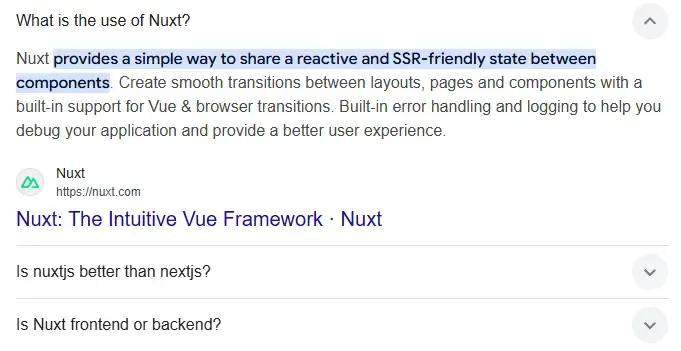
Until May 2026, this markup could produce a rich result like the one in the image below:
How to Check That the JSON-LD Is in the HTML
Open the page in the browser and use "View page source", not "Inspect element". Look for a <script type="application/ld+json"> block. nuxt-schema-org injects the JSON-LD during server rendering, so it has to be in the raw HTML. If it only shows up after hydration, review the rendering configuration of the page.
How to Validate Structured Data
After publishing, validate the page with these tools:
- Google's Rich Results Test: shows the items detected on the URL and lists errors and warnings.
- The Schema Markup Validator: checks the JSON-LD syntax against schema.org, regardless of whether Google shows a rich result.
- The structured data report in Search Console: groups the errors and warnings of the whole site.
The most common problems on blogs are these:
- A missing recommended property, such as
imageorauthor. It is not a critical error inArticle, but it limits what Google can use. - A small or inaccessible image. For Discover, the image needs to be at least 1200 px wide and the URL cannot be blocked for the crawler.
- An invalid date format. Use ISO 8601, like
2026-10-03or2026-10-03T14:30:00-03:00. - Markup that differs from the visible content. The title, author, date and image in the schema must match what the user sees on the page.
How to Get Google to Index Your Article
Correct structured data does not help if Google does not index the page. The flow for a new article is this:
- Confirm the URL is in
sitemap.xmland that the sitemap is submitted in Search Console. In Nuxt, the@nuxtjs/sitemapmodule generates this file. - Paste the URL in the "Inspect any URL" field of Search Console.
- Click "Request indexing".
The indexing request puts the URL in a crawl queue, but it does not guarantee indexing, and Google does not give a timeframe. Google also does not publish the daily request limit. When you reach it, the button becomes unavailable until the next day, so use it only for important URLs and do not resubmit the same page several times.
For the other pages, what helps Google find them is the sitemap and internal links. A page with no links from other pages on the site tends to be discovered more slowly. Link to new articles from the blog listing and from related posts.
Discovered, Currently Not Indexed
In the page indexing report, two statuses confuse many people:
- Discovered, currently not indexed: Google knows the URL but has not crawled it yet. Strengthen internal links, check that the URL is in the sitemap and verify that the server is not returning 5xx errors or responding slowly.
- Crawled, currently not indexed: Google already read the page and decided not to index it for now. It is usually a quality issue: content too similar to something already indexed, shallow, or off the search intent. Improve the content and only then request indexing again.
How to Appear in Google Discover
Discover is the content feed in the Google app and on mobile browsers. It shows content based on each user's interests, without depending on a search. According to Google's documentation, to be eligible the content needs to:
- Be indexed and follow Discover's content policies, with no clickbait or sensationalism.
- Have an image at least 1200 px wide and more than 300,000 pixels in total, in a 16x9 aspect ratio, with the
max-image-preview:largerobots meta enabled. - Be original, helpful and made for people.
No structured data is required for Discover. But Google uses the schema.org image and the og:image meta tag to choose the card image, so keep both pointing to a good image and do not use the site logo instead.
In Nuxt, the robots meta can be set on the page itself:
<script setup>
useSeoMeta({
  robots: "index, follow, max-image-preview:large"
});
</script>
Discover performance shows up in its own report in Search Console. If your site has no data there, the content is not being shown in the feed yet.
Notifying Bing with IndexNow
IndexNow is a protocol adopted by Bing and other search engines to signal when a URL is created, updated or removed. You generate a key, publish a .txt file with it at the root of the domain and make a request to the IndexNow endpoint whenever you publish or update an article. This tells the search engine something new exists, but it does not guarantee immediate indexing. The official guide is at bing.com/indexnow/getstarted.
Frequently Asked Questions
Do I need structured data for my blog to rank?
No. It is not required to rank, but it helps Google understand your articles better. For a blog, the starting point is Article with an author and an image, plus the breadcrumb.
Is it worth keeping FAQPage if it no longer produces a rich result?
It is, if the page has a question and answer section that is visible to the user. In that case the markup serves to describe the content.
Does structured data guarantee my post shows up in Discover?
No. Discover does not require structured data. What matters is that the content is indexed, has a large image and follows the content policies.
My article shows as "Crawled, currently not indexed". What should I do?
That status usually points to the quality or originality of the page. Improve the content, strengthen internal links and request indexing again afterward.
How do I know Google is reading my JSON-LD?
Check the raw HTML in "View page source", test the URL in the Rich Results Test and follow the structured data report in Search Console.
Conclusion
For each new article, mark up Article with author, image and dates, check the JSON-LD in the source, validate it in the Rich Results Test and follow the indexing report in Search Console. Update updatedAt only when the content really changes and, if Bing matters to you, set up IndexNow.
To go deeper, read the complete documentation of the module, Google's documentation on Article structured data and Google's Discover documentation.